Customize which logbooks appear in your tabs
What you'll do
Add the logbooks you need to monitor to your personal tab strip, and close the ones you don't. Your tabs are yours alone. They don't affect what other users see.
Before you start
- You are in an event (named or default)
- You have at least one logbook open in the tabbed view (click any logbook name from the logbook dashboard to get here)
Steps
Add a logbook tab
-
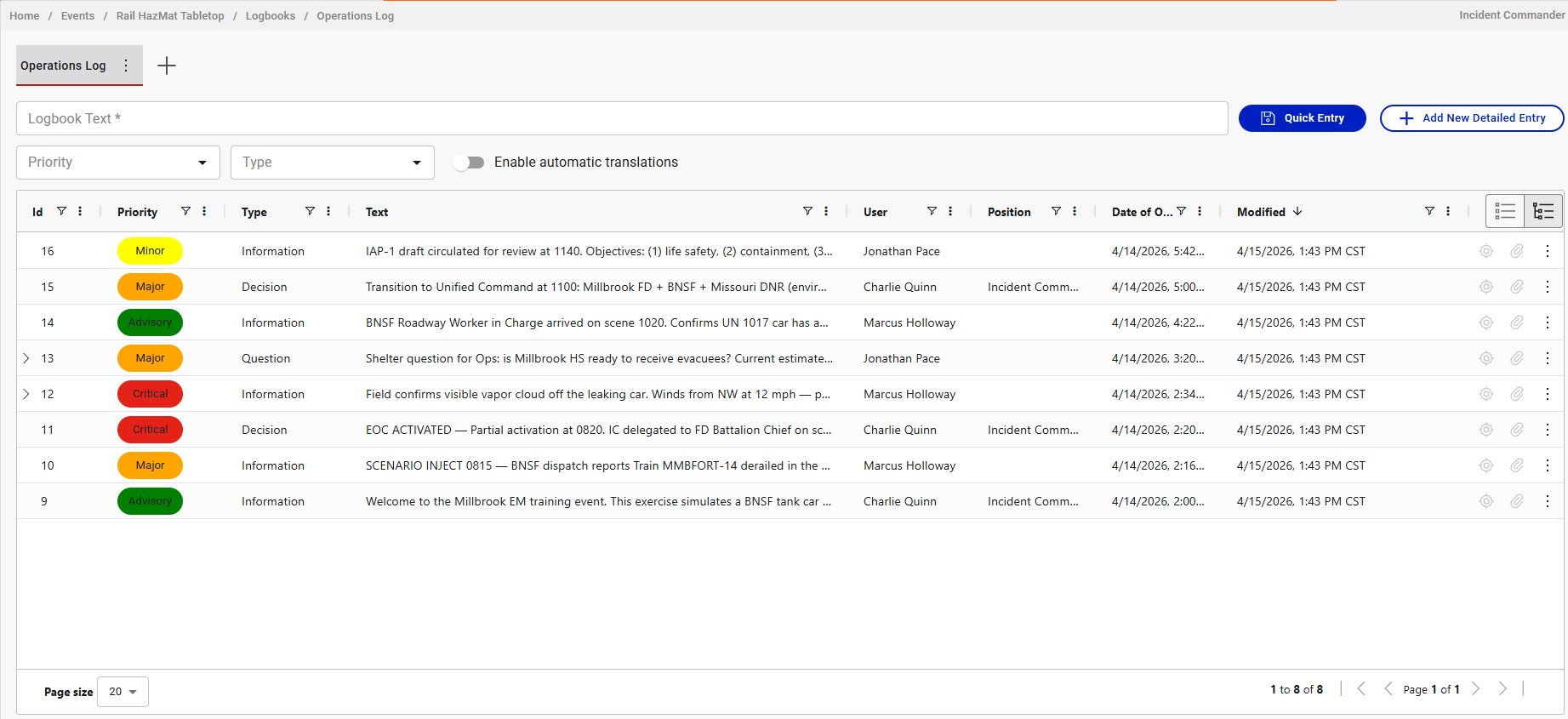
Click the + button at the end of the tab strip.
-
A logbook picker opens, showing all organization logbooks not currently in your tabs.
-
Click the logbook you want to add. It opens as a new tab.
Close a logbook tab
-
Click the kebab menu (three dots) next to the logbook name on the tab.
-
Click Close.
The tab disappears. The logbook still exists. You've just removed it from your view.
Result
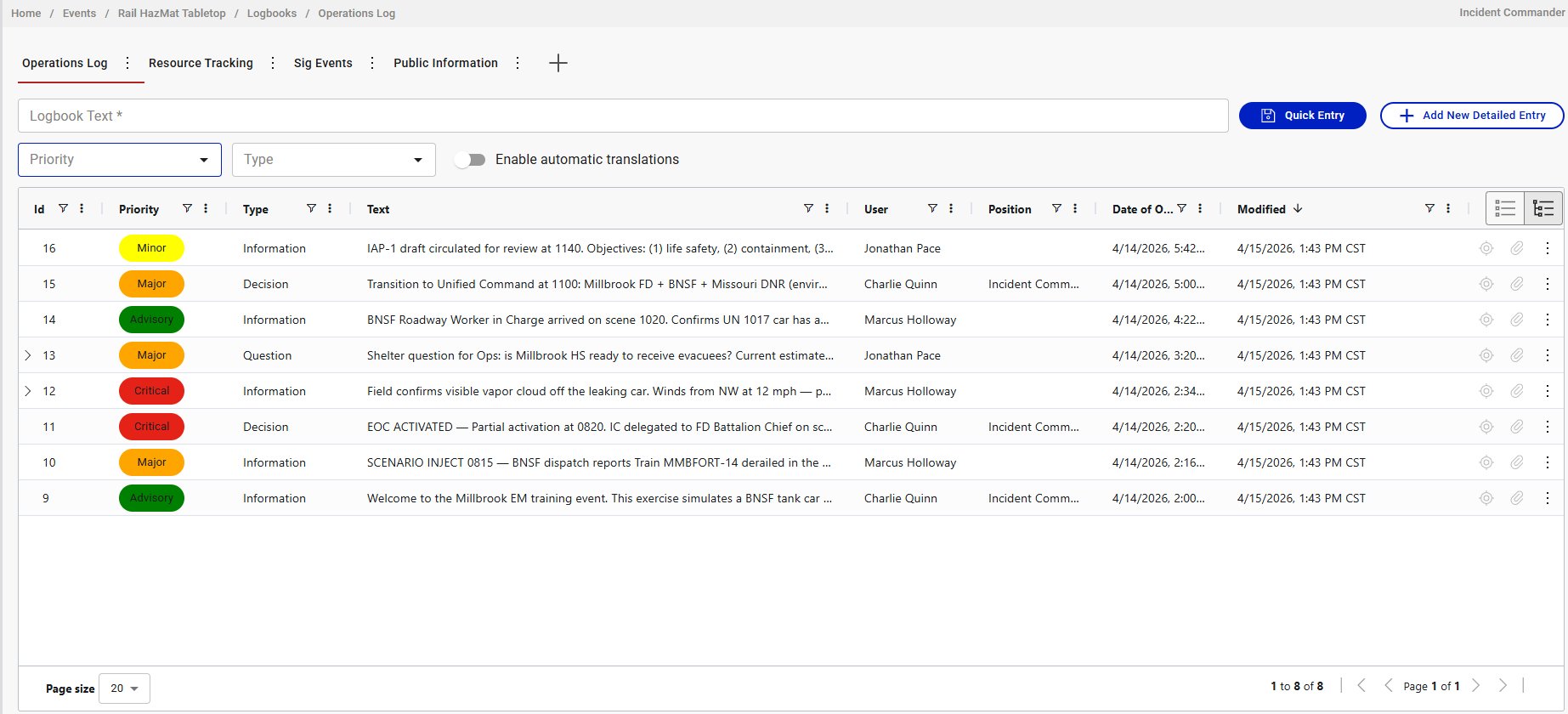
Your tab strip shows only the logbooks you've chosen. Click any tab to switch between them.
Tips
- Start with the logbooks that match your position. An Operations Section Chief probably needs Operations Log and Resource Tracking. A PIO needs Public Information and Sig Events.
- Closing a tab does not delete the logbook or remove any entries. It only removes the tab from your view.
- If you're unsure which logbooks are available, go back to the dashboard. It shows every logbook in the organization with descriptions.