Create a detailed logbook entry
What you'll do
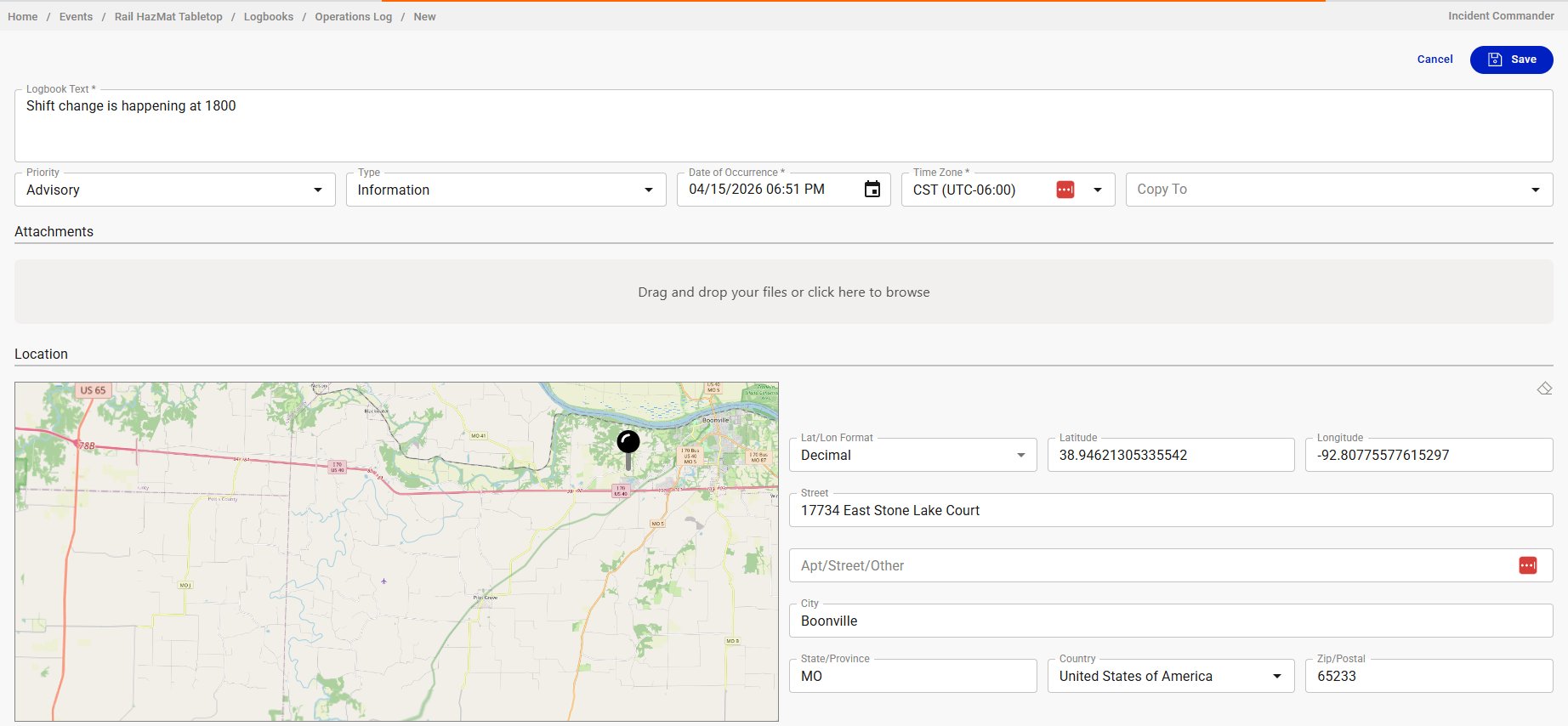
Create a logbook entry with the full set of optional fields: priority, type, date of occurrence, attachments, location, and the ability to copy the entry to another logbook. Use this when a quick entry isn't enough: field reports with photos, entries backdated to when something actually happened, or observations tied to a specific location on the map.
Before you start
- You are in an event (named or default)
- You have a role with at least Contribute or Edit permission on Logbooks (the built-in Editor role has this)
- You have the target logbook open in the tabbed view. If you don't see it, add it to your tabs or open it from the logbook dashboard
Steps
-
Click + Add New Detailed Entry in the top right of the logbook view. The detailed entry form opens.
-
Type your entry text in the Logbook Text field. If you had text in the quick-entry input, it carries over.
-
Set the Priority: Advisory, Minor, Major, or Critical.
-
Set the Type: Information, Question, Decision, or Answer.
-
Confirm the Date of Occurrence. It defaults to right now. Change it if the event you're recording happened earlier. For example, a field observation reported by radio 20 minutes ago.
-
Confirm the Time Zone. It defaults to the event's time zone.
-
(Optional) Use the Copy To dropdown to cross-post this entry to another logbook. This is useful when you want to promote a field report to the Sig Events logbook, or inform another section's log about something relevant to them. The entry appears in both logbooks.
-
(Optional) Add Attachments by dragging files into the drop zone or clicking it to browse. Photos, documents, PDFs. No file type or size restrictions.
-
(Optional) Set a Location by clicking on the map, typing coordinates, or entering an address. Entries with a location will appear on the event map.
-
Click Save.
Result
The entry appears in the logbook with all the fields you set. If you used Copy To, it also appears in the target logbook. If you set a location, the entry is visible on the event map. Attachments are accessible from the entry in the logbook view.
Tips
- The Date of Occurrence field is what makes the detailed form essential for backdated entries. Quick entries always use the current time.
- Use Copy To sparingly. It's a powerful feature for cross-functional coordination, but if every entry is copied everywhere, the logbooks lose their purpose as focused records.
- When adding a location, clicking directly on the map is usually faster than typing an address. The address fields auto-populate from the map click.
- The breadcrumb at the top shows which logbook you're posting to. Double-check it if you have multiple tabs open.