Create a logbook entry
What you'll do
Post a quick logbook entry, the fastest way to get information into the record. Type your text, optionally set a priority and type, and submit. Takes about 10 seconds.
Before you start
- You are in an event (named or default)
- You have a role with at least Contribute or Edit permission on Logbooks (the built-in Editor role has this)
- You have the target logbook open in the tabbed view. If you don't see it, add it to your tabs or open it from the logbook dashboard
Steps
-
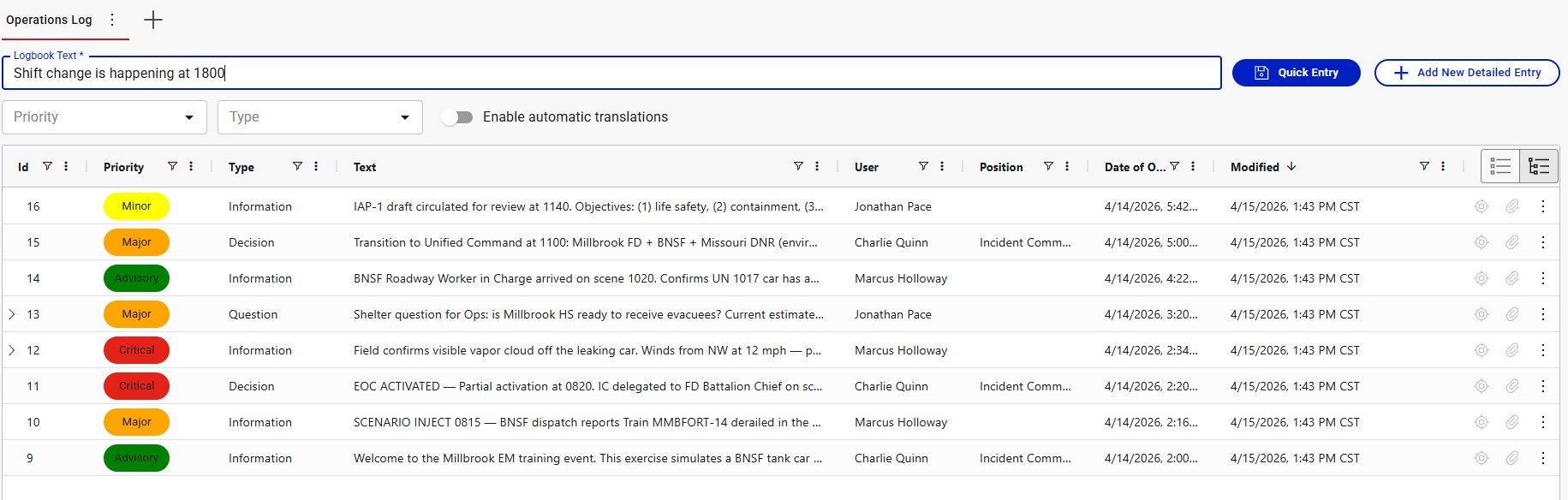
Click the Logbook Text input at the top of the logbook view.
-
Type your entry. Be specific and timestamped when possible.
Water rescue team deployed to River Rd bridge at 1430is better thanTeam deployed. -
(Optional) Set a Priority using the dropdown to the left of the entry input. Choose from Advisory, Minor, Major, or Critical based on urgency.
-
(Optional) Set a Type using the dropdown next to Priority. Choose Information, Question, Decision, or Answer based on what the entry represents.
-
Click Quick Entry to submit.
Result
The entry appears at the top of the logbook list with your name, position (if you have one selected), the current timestamp, and whatever priority and type you set. If you didn't set a priority or type, they default to the system defaults.
Tips
- Quick entries are the workhorse of COBRA logbooks. Use them for the majority of your posts. Reserve the detailed entry form for entries that need attachments, a specific location, or a date of occurrence that differs from right now.
- The Priority and Type dropdowns above the entry list stay set between entries. If you're posting several Critical/Information entries in a row, set them once and they'll apply to each Quick Entry until you change them.
- If you need to add more detail (location, attachments, a different date), use + Add New Detailed Entry instead. See Create a detailed logbook entry.